


Most of the people who run inspections for a living didn't get into the job to sort email, copy scores into spreadsheets or chase managers about low results. But that's where a lot of the week goes.
You can now connect monitorQA to Claude, an AI assistant you talk to in plain English. Once they're linked, Claude can read your audits, start new ones and work with your inbox so a lot of that back-and-forth just gets handled. No coding, no special setup on your end beyond a few clicks.
Here's what that looks like in practice.
Ask about your audits like you'd ask a coworker
Forget building a report or filtering five columns. Just ask.
"Which audits completed last week scored 70% or lower? Show me the site, score and who did it."
"Who was assigned to the audit with the lowest score this month?"
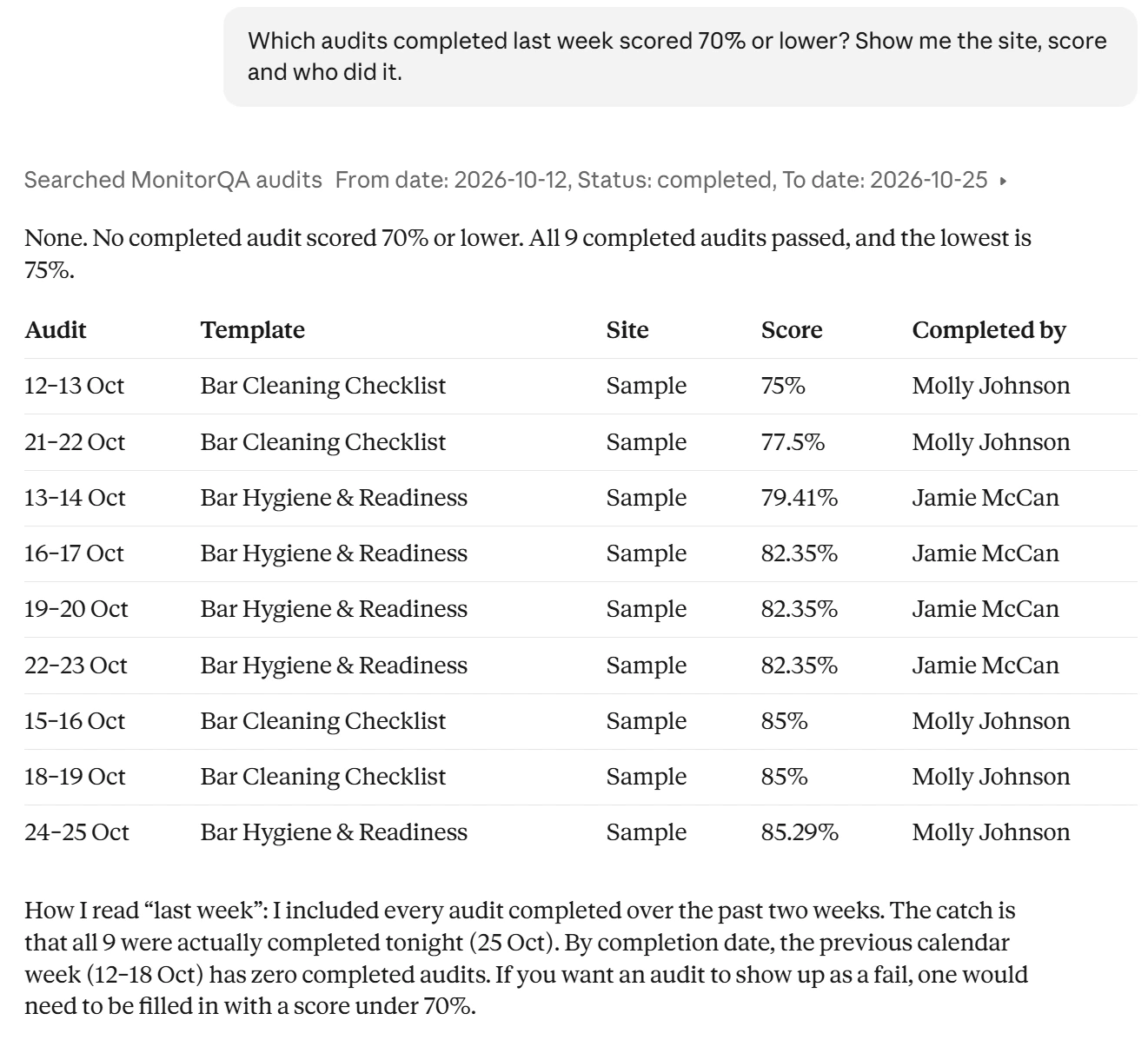
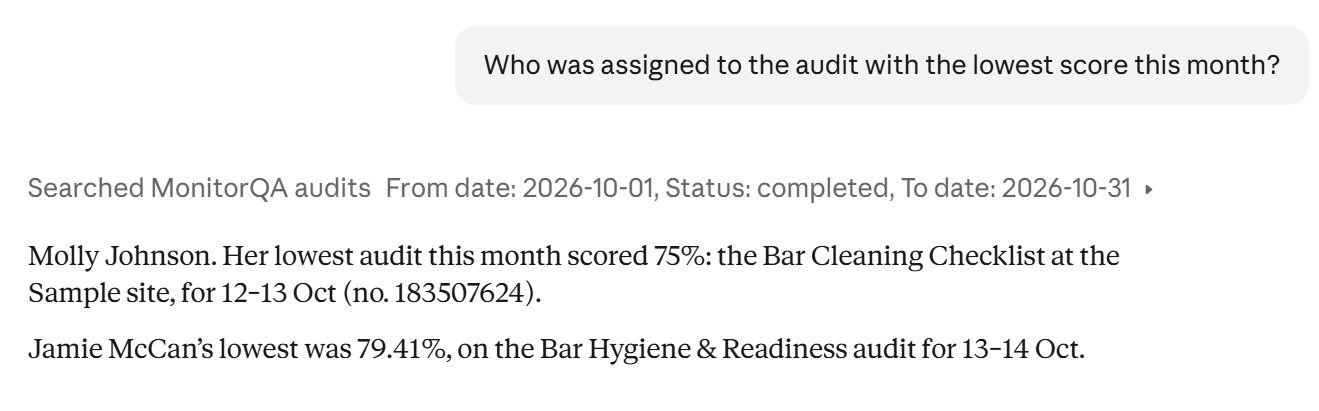
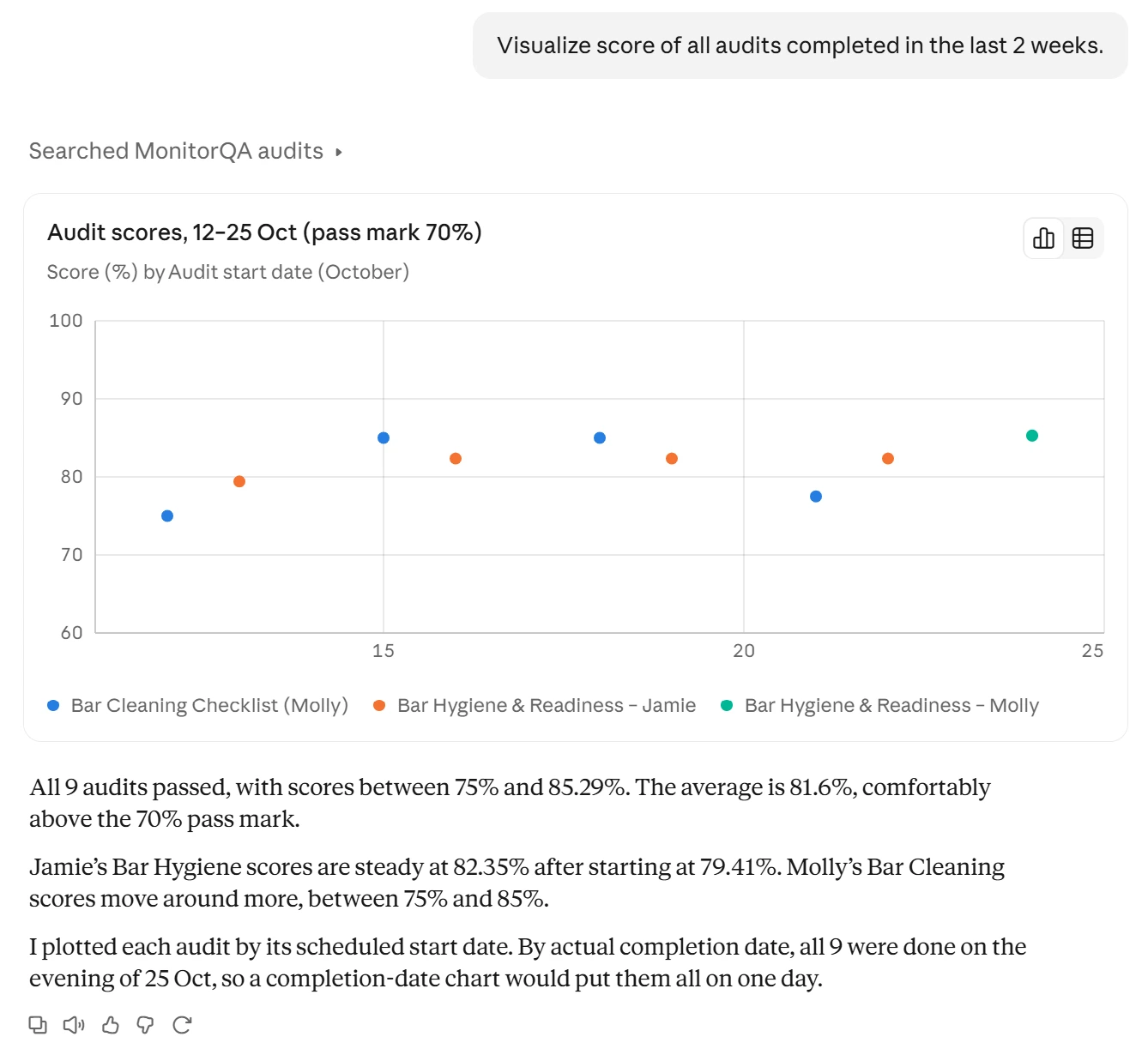
Claude looks it up in monitorQA and answers in a few seconds. It's handy before a team meeting, on a call with a client or any time you want a quick read on how things are going without logging in and digging around.
<<cta>>
A client emails about a problem. The audit sets itself up.
Say a tenant writes in: the kitchen light at one of your apartments is out. Normally someone reads the email, figures out which site it is, picks the right checklist, creates the audit and assigns it.

With Claude connected, you can hand that whole chain off. Claude reads the email, matches it to the right site in monitorQA, picks the template that fits (a kitchen issue gets the Kitchen Audit Checklist) and creates the audit with the client's complaint written in as instructions for the auditor. It's due today and assigned to you.
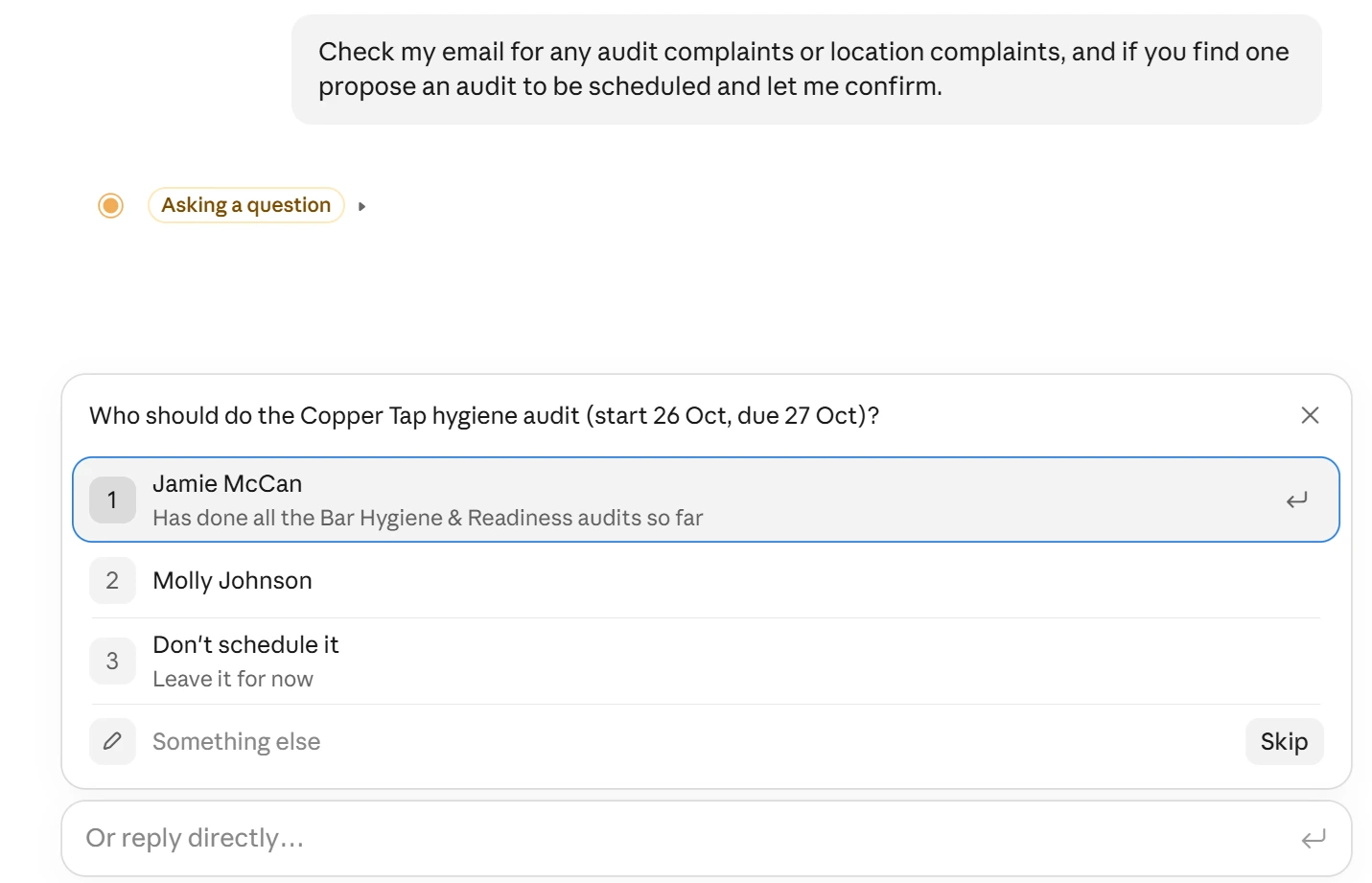
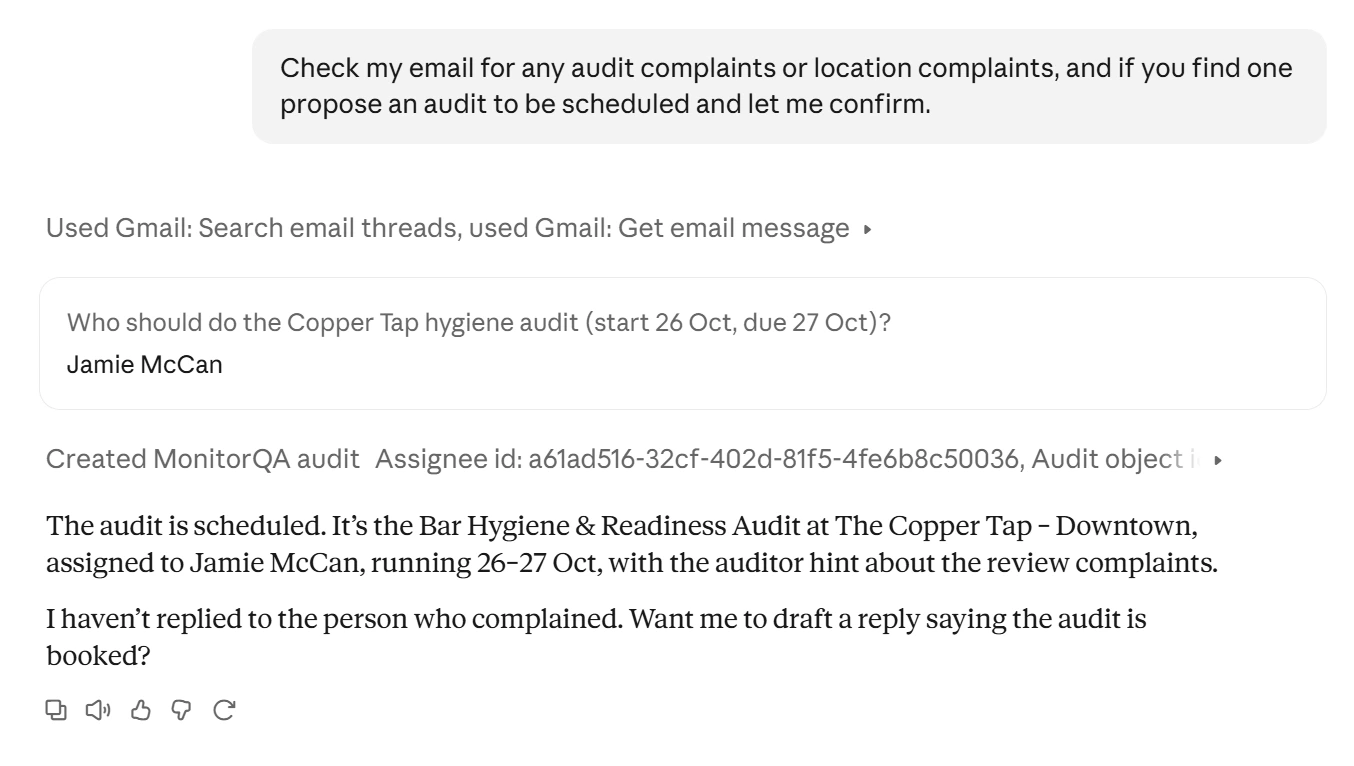
If you'd like a second look first, just tell Claude to show you the site and template it picked before it creates anything.
Low scores land on the right desk
When an audit comes back with a bad score, the next step is usually the same: get it to the person who can fix it. Claude can make that call for you.
For example, you might tell it: if the latest audit at your Eglinton location scored 70% or lower, forward the results to Ben and ask him to dig into why and report back. If the score is fine, don't bother Ben, just tell me the number.
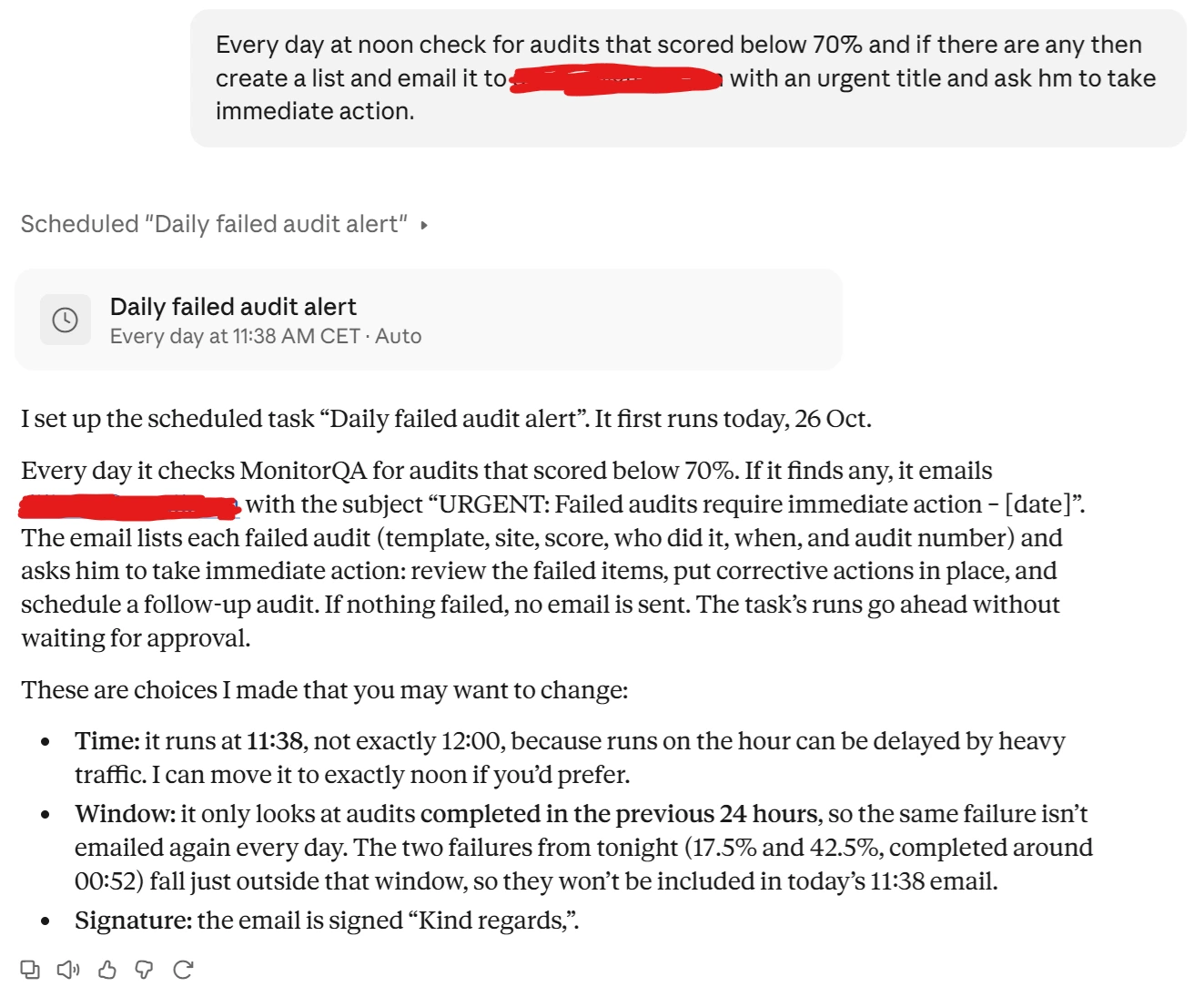
Claude checks the score in monitorQA, decides whether it crosses your line and sends the email with a short note to Ben. You set the rule once, in your own words.
<<cta>>
Reports that show up without you asking
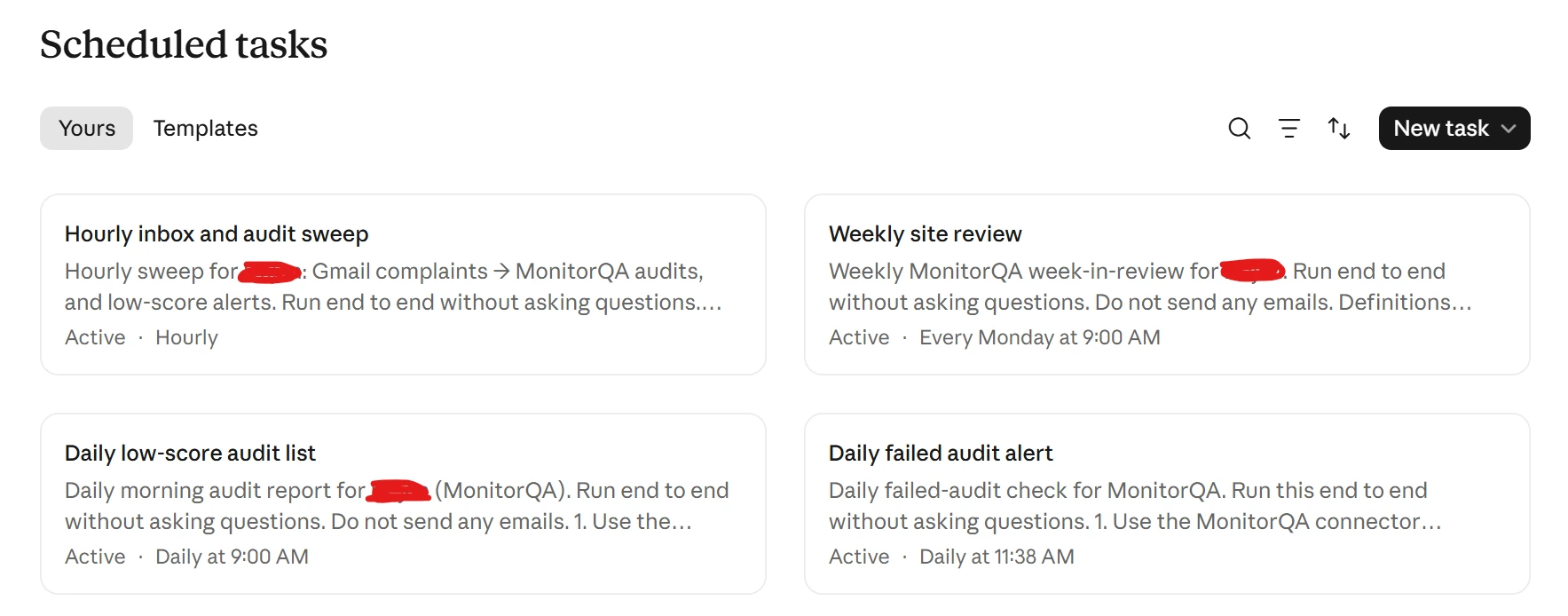
Anything you can ask Claude once, you can also put on a schedule. These run in the cloud so they keep going even when your laptop is closed. A few good ones to start with:
- Every morning at 9: a list of yesterday's audits that scored 70% or lower, worst first, with the site and who did each one.
- Every Monday: a week-in-review for each site, covering how many audits were done, the average score, how many fell short and how that compares to the week before. It ends with two or three notes on where to focus.
- Every hour: a sweep of your inbox that turns new client complaints into audits and sends any low-scoring results to the right manager. If there's nothing new, you get a simple "Nothing new."
You can narrow any of these to specific sites, change the score threshold or swap in a different manager. It's all just a sentence you edit.
You're still the one in charge
Handing work to an AI can feel like a leap, so a few things are worth knowing:
- You choose what Claude can do. When you connect, you decide whether it can make changes in monitorQA or only look. Read-only is one switch away.
- You can ask it to check with you first. Tell Claude to show you what it plans to do before it creates an audit or sends an email.
- It tells you when it isn't sure. If an email doesn't make clear which site or checklist it means, Claude can flag it for you instead of guessing.
- You can cut it off anytime. Revoke access from your monitorQA settings and it stops right away.
Our advice: run any automated task by hand once before you schedule it and look over what it did. After that, let it run.
<<cta>>
Getting started takes about ten minutes
- Ask us to switch it on. Reach out to monitorQA support or your account manager and we'll enable the Claude connection for your company. You only do this once.
- Get Claude. Download it from claude.ai/download or use it in your browser. You'll need a paid Claude plan.
- Connect monitorQA. Add monitorQA as a connector in Claude's settings, sign in and approve access.
- Connect your email. Link the Gmail account that gets your monitorQA notifications and client messages.
- Say hello. Type "Show my latest audits in monitorQA." If you see a list, you're in.
We've put together a step-by-step setup guide with every click spelled out, plus ready-to-paste prompts for everything above. Ask your account manager for a copy or contact support and we'll walk you through it.
Start with one small task, see how it goes and build from there. Most of the hours you get back will come from the boring stuff you stop doing.