Your audit data knows more than anyone has time to read. Every completed audit holds dozens of answers and across 30 sites and a few months, that's thousands of small signals nobody will ever look at one by one.
The audits themselves usually aren't the problem. monitorQA already handles the checklists, scores, corrective actions and reports. The hours go into everything in between: pulling results together before a meeting, turning a client's email into an audit, setting up 40 new users after an acquisition, chasing an action that's been overdue for two weeks.
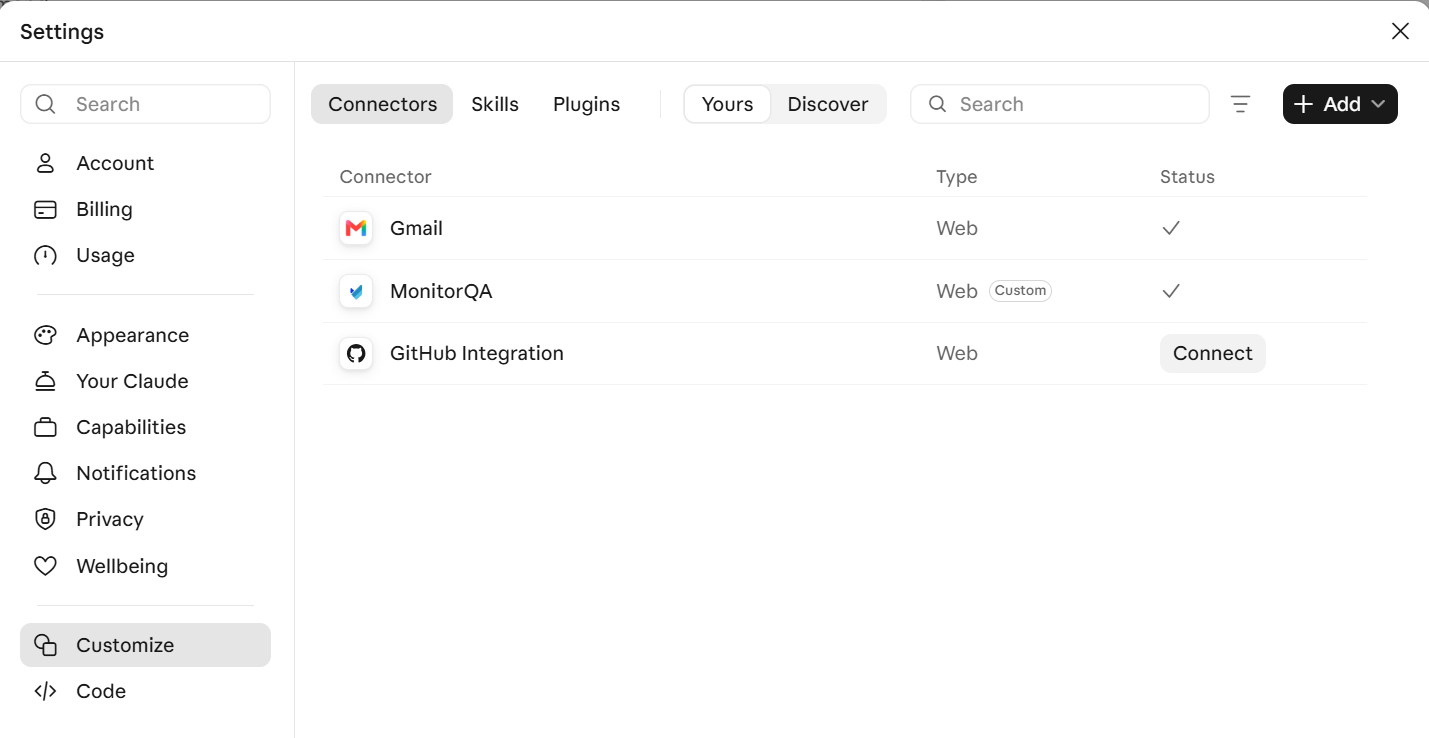
That in-between work is what an AI assistant can now take on. Connect monitorQA to an assistant like Claude and you get a colleague who can read every result, handle the admin between steps and pass information to the other systems your team already uses.
This post covers what that means in practice, what the assistant can and can't do and how you stay in control. It's also the starting point for a series that looks at each of these in more detail.
What's actually connecting to what
The link between monitorQA and an AI assistant runs on MCP, short for Model Context Protocol. It's an open standard, introduced by Anthropic in 2024, that gives AI assistants a common way to work with other software. Think of it as a universal adapter: a system that supports MCP can plug into any assistant that supports it too.
That has one very practical benefit: you aren't tied to a single AI vendor. Claude, ChatGPT, Gemini and Microsoft Copilot all support MCP connections. Our examples use Claude, because that's where we've tested every workflow in this series but the connection itself isn't built for one assistant.
<<cta>>
Once connected, the assistant works inside monitorQA through the account you connect it with. It sees live data, not last week's export and it can only do what that account is allowed to do. More on that below.
What the assistant can do for you
Quite a lot. Most of it falls into four groups.
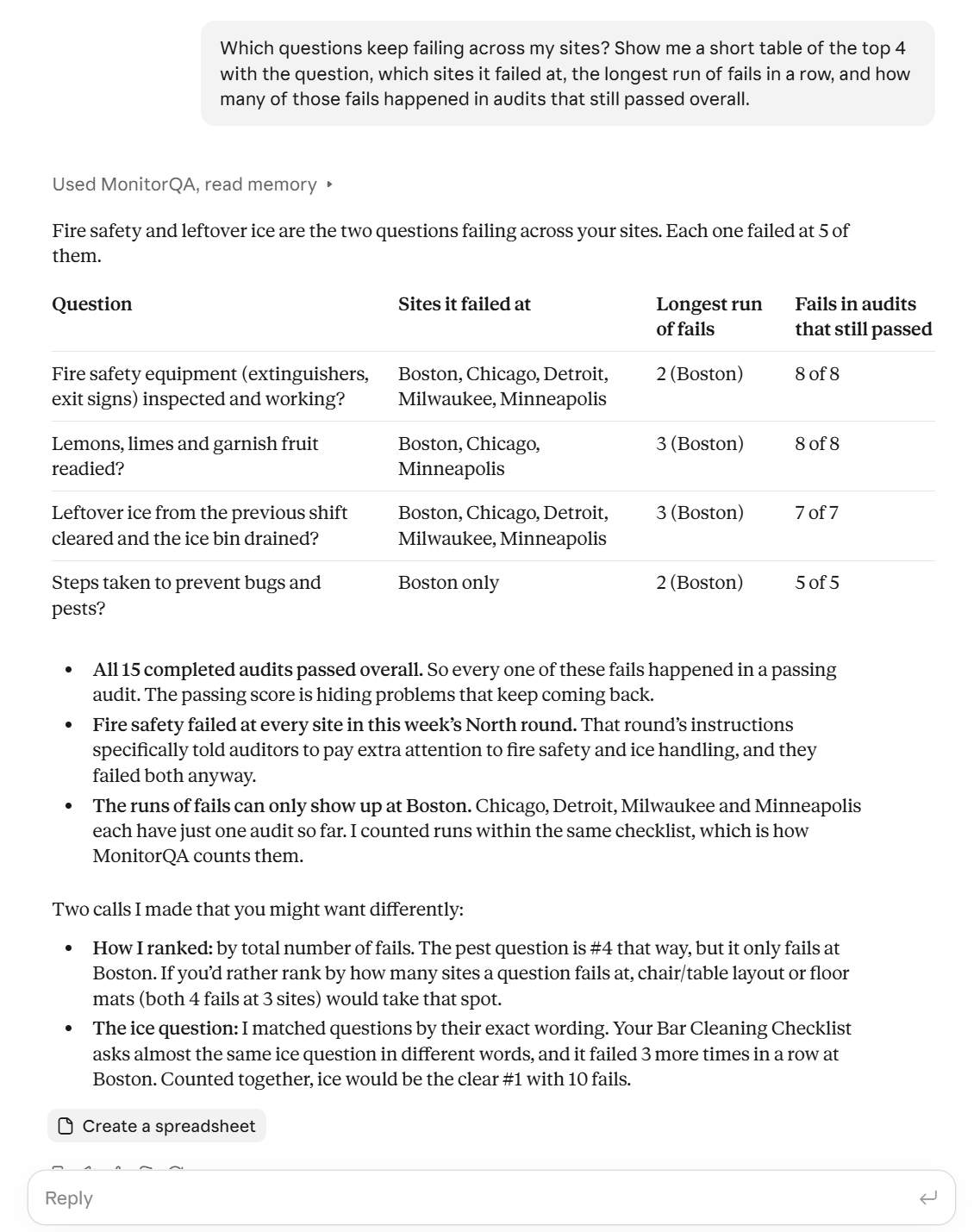
It reads your results, down to the individual question. Ask in plain words, the way you'd ask a coworker: "Which questions keep failing across my sites?" The assistant reads every answer in every completed audit, not just the overall scores. So a site that averages 85% but has failed the same fire-safety question in four of its last six audits doesn't slip past. monitorQA already counts how many audits in a row a question has failed and the assistant puts that count to work.
It sets things up. Hand it a spreadsheet of locations and staff and it creates the sites, adds users with the right roles, gives each person access to their sites and groups everything into units such as regions. What used to be days of clicking becomes one conversation.
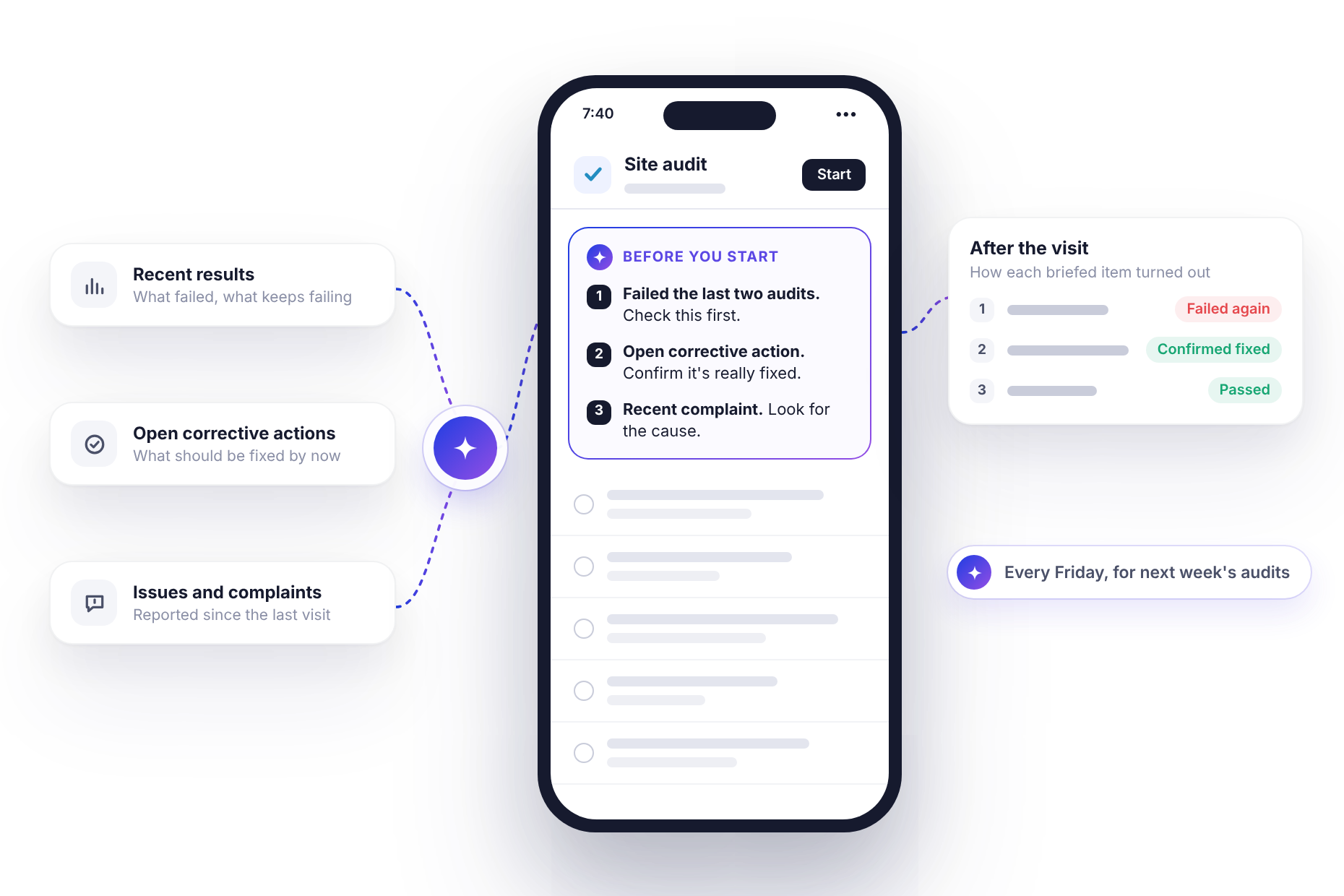
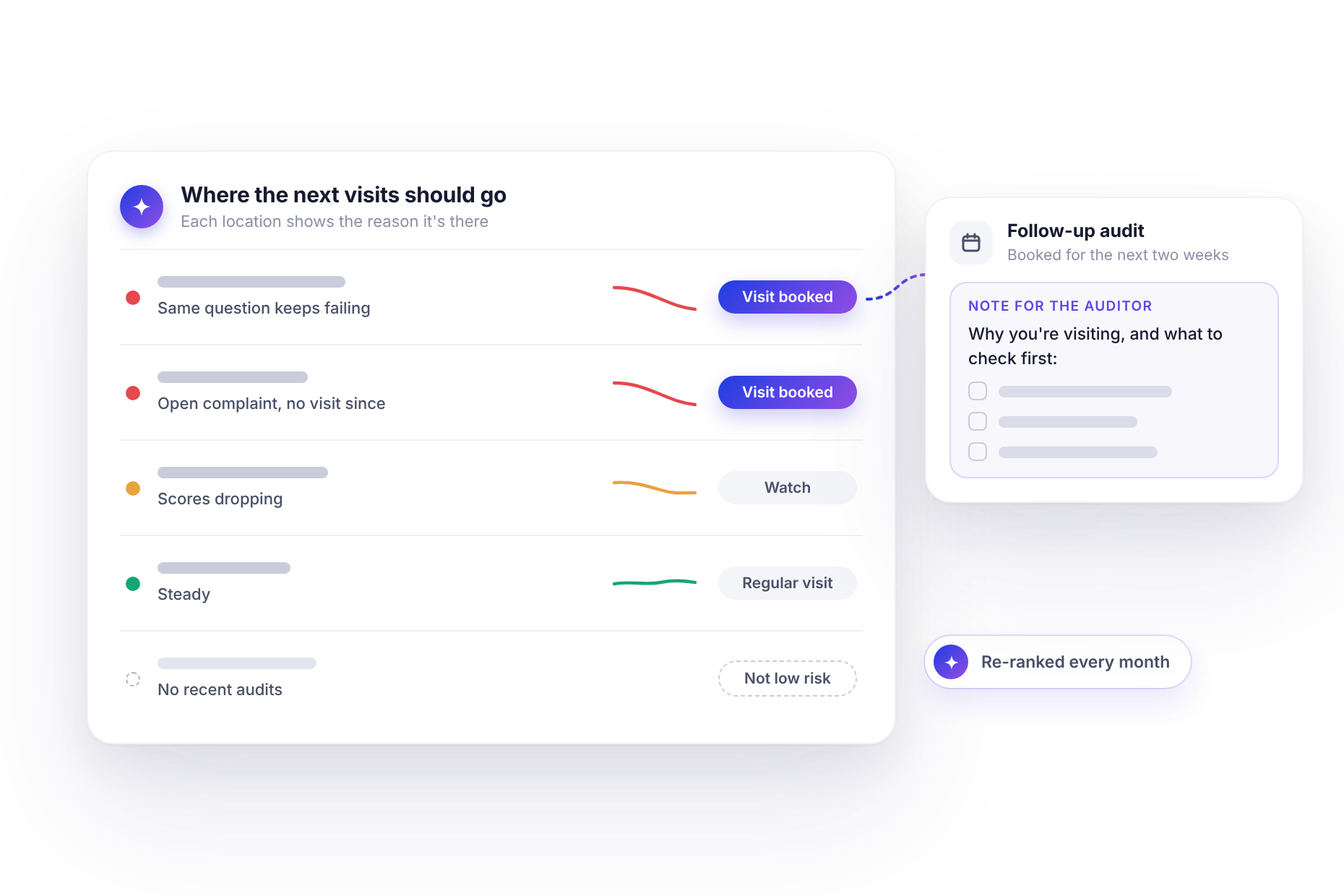
It schedules audits. One request can create an audit at every site in a region, set up a recurring schedule or book follow-ups at the sites that scored worst last quarter. Each one can include a short briefing in the auditor's hint, so whoever arrives knows what went wrong last time.
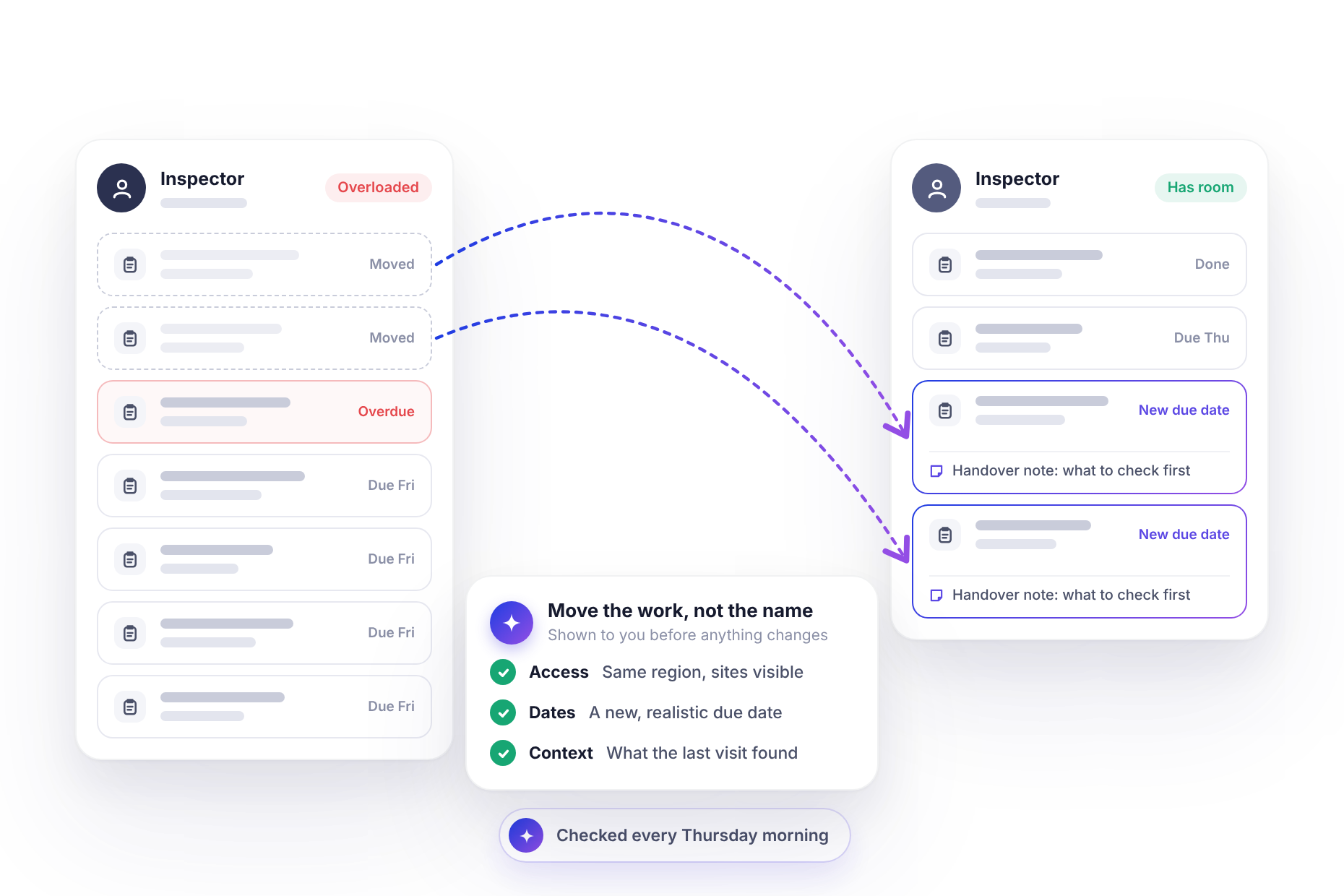
It acts on what it finds. A failed audit can become a set of corrective actions, each with an owner, due date and priority. A complaint can be logged as an issue on the right site. An overdue audit sitting with a busy auditor can be moved to someone with time, along with the access they need to do it.
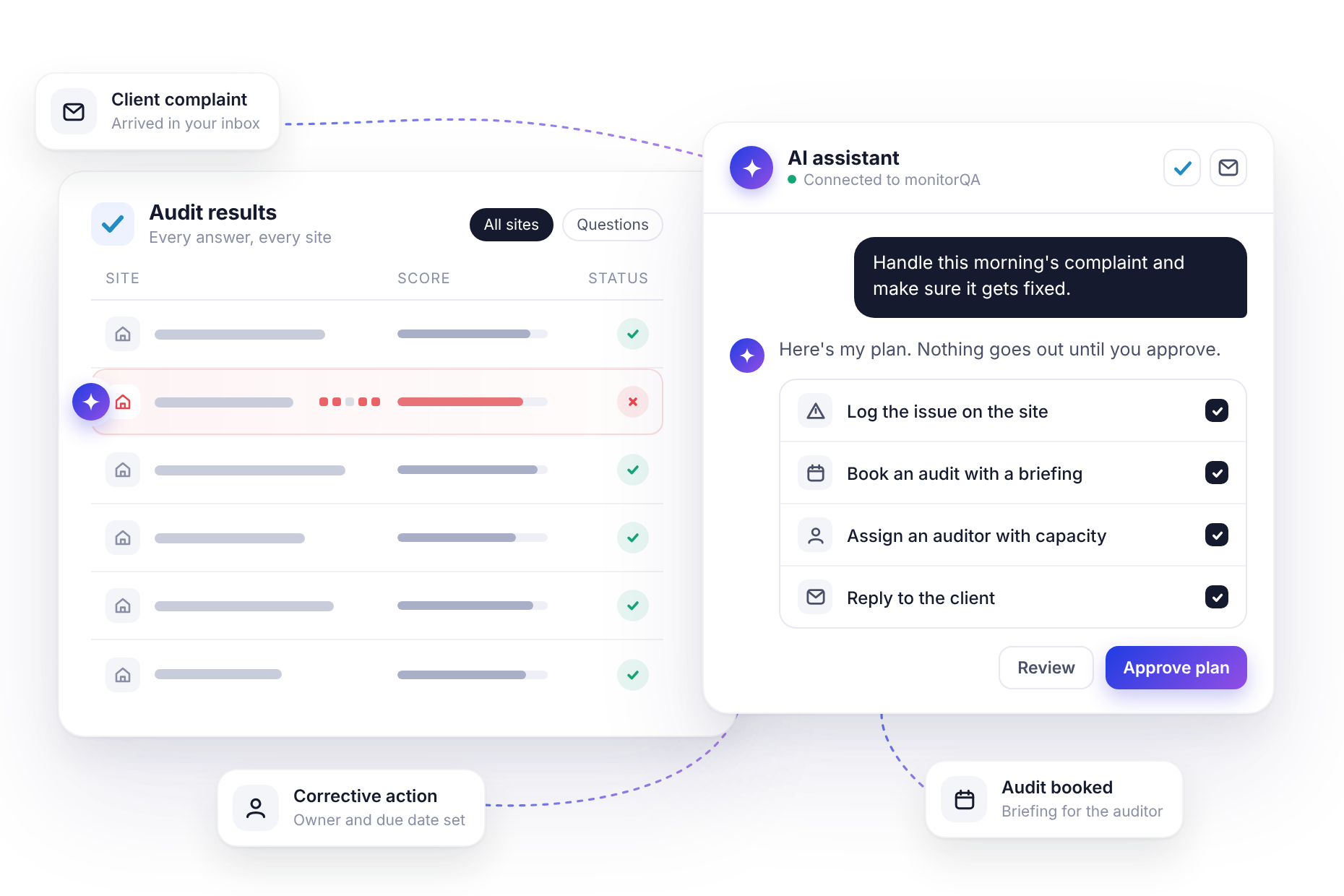
It also works across systems. Connect your email too, and a client complaint in your inbox can turn into a logged issue, a booked audit and a reply to the client, all from one instruction.
What a week can look like
Here's how that might come together for an operations manager running 50 hospitality sites.
She uploads a spreadsheet and has every site and auditor set up the same afternoon. She asks for hygiene audits weighted towards last quarter's weakest locations and they're booked with briefings attached. Each morning, a short list of anything that scored 70% or lower is waiting for her.
On Wednesday, a guest emails about a dirty bar at one of the sites. The assistant logs the complaint, books a hygiene audit with a briefing that mentions it, gives it to an auditor with capacity and replies to the guest. The audit fails, so corrective actions go out with owners and due dates and a re-audit gets booked. On Monday, a site-by-site review tells her where to focus next.
She didn't build a single report. She also didn't do a single audit, which brings us to the next point.
<<cta>>
What stays with your team
The assistant is a manager's assistant, not an auditor. A few things stay firmly with people.
Doing the audits. The assistant can't answer audit questions or complete an audit. Someone still has to walk the site, open the fridge and check the fire exit. That's how it should be: a pass should mean a person actually looked.
Building checklists. The assistant can read your templates, compare them with your results and suggest questions to reword, add or retire. It can also copy an existing template. Creating and editing templates still happens in monitorQA, where the AI-Powered Audit Template Builder can help with the drafting.
Making the calls. The assistant can recommend which sites need a follow-up or which failures deserve an action. Whether to act on that is up to you and you can ask it to show you its plan before it does anything.
One more thing worth knowing: the assistant doesn't react the instant something happens in monitorQA. Automated jobs run on a schedule you set, such as every hour or every morning, so think "within the hour" rather than "immediately."
You stay in control
Giving software permission to make changes deserves some thought. Here's how the connection is designed to keep you in charge.
- It has your permissions, no more. The assistant can only do what the connected user's role allows. If that role can't delete sites, neither can the assistant. You manage it with the same roles you already use.
- Read-only is an option. Connect with a view-only role such as Observer, and the assistant can explore all your results, actions and reports freely.
- It can check with you first. Ask it to show you what it's about to create, assign or send before it does. For anything involving deletion, always do this, since deletions can't be undone.
- You can switch it off anytime. Disconnect monitorQA in your assistant's connector settings and the connection stops.
A sensible way to start is read-only. Ask questions for a week, see how the answers hold up, then switch to a role that can make changes once you trust what you're seeing.
Where this series goes next
Each post in this series takes one job and walks through it step by step, using real requests and what the assistant does with them. They fall into three groups:
Insight: see what your data is telling you
- The failures your averages hide
- Stop checking dashboards: let the problems find you
- Can you trust your audit data?
- Let your results rewrite your checklists
<<cta>>
Operations: less admin, better planning
- 50 sites live in an afternoon
- Audit where the risk is
- Nothing overdue, nobody overloaded
- Brief every auditor before they arrive
- One sentence, one campaign
Action: from finding a problem to fixing it
- From complaint to corrective action in an hour
- Every failure gets an owner
- Inspection-ready in minutes
- Connect audits to the rest of the business
Getting started
If you've already followed Put Your Audits on Autopilot, you're connected and ready. If not, ask monitorQA support or your account manager to switch on the connection for your company, then add monitorQA as a connector in your assistant and sign in.
Then start with a question you'd normally build a report to answer. If the answer saves you twenty minutes, you'll know what to hand over next.