It’s Monday, 8:15. A regional manager with 17 bars opens the dashboard, sets the date filter to last week and starts scrolling. Ten audits. Most of them fine. Two that need a call.
Finding those two means opening the reports one by one, because a passing score can still hide a failed fire safety check. On a good week, it turns out there was nothing to find at all.
That’s the strange thing about checking dashboards: most of the time, the checking is the whole job. It only matters on the day something’s wrong, and you can’t skip it, because you never know which day that will be.
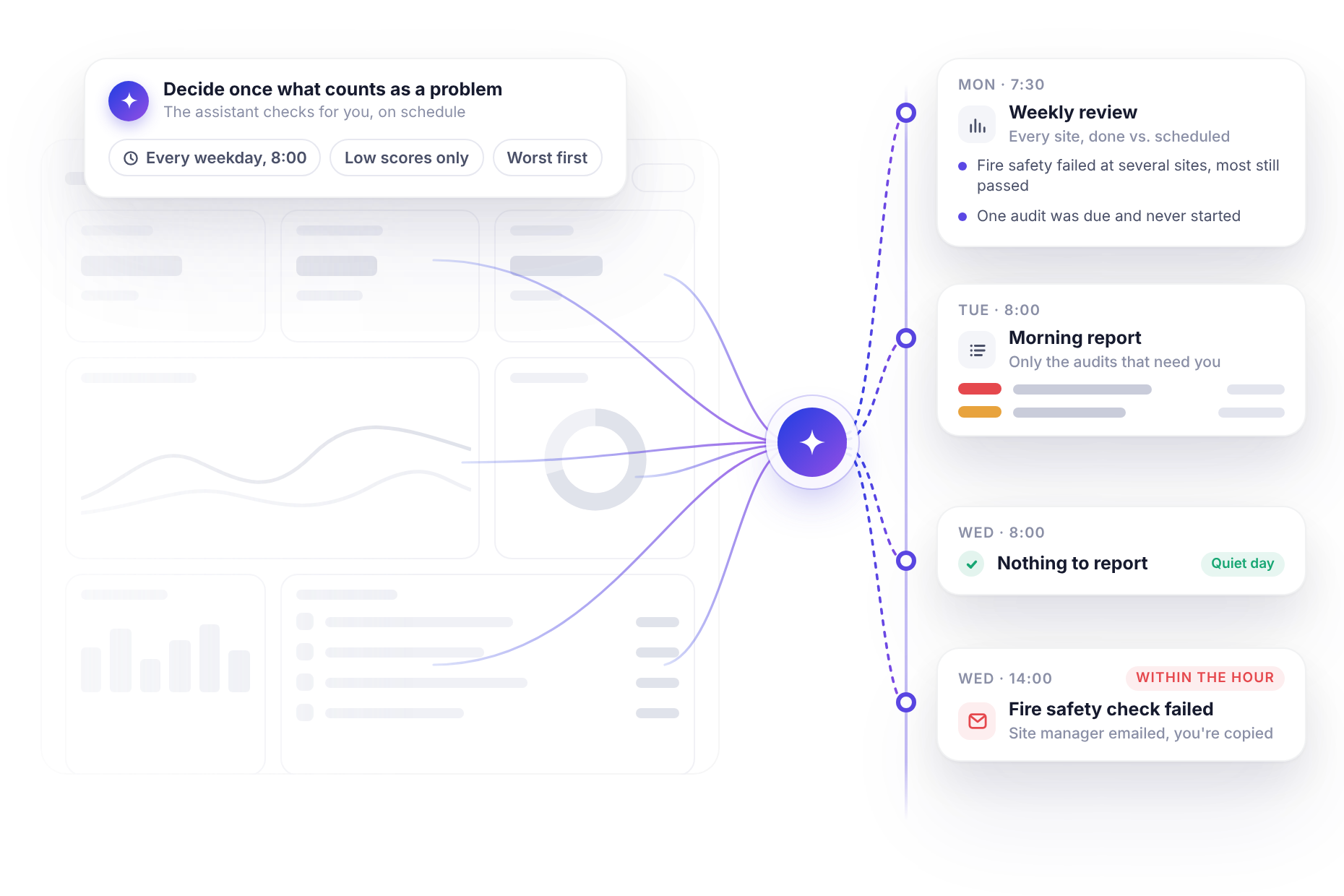
This post is about flipping that around. Instead of going to look for problems, you decide once what counts as a problem and the problems come to you.
Your job is the exceptions
Nobody needs a manager to read a 94% audit. The bar is doing its job and the result is on record if anyone ever asks.
What managers are actually for is the small number of results that need a decision: a bar that dropped 20 points in a week, a fire safety check that failed, a site that’s been slipping for a month. Everything else is background.
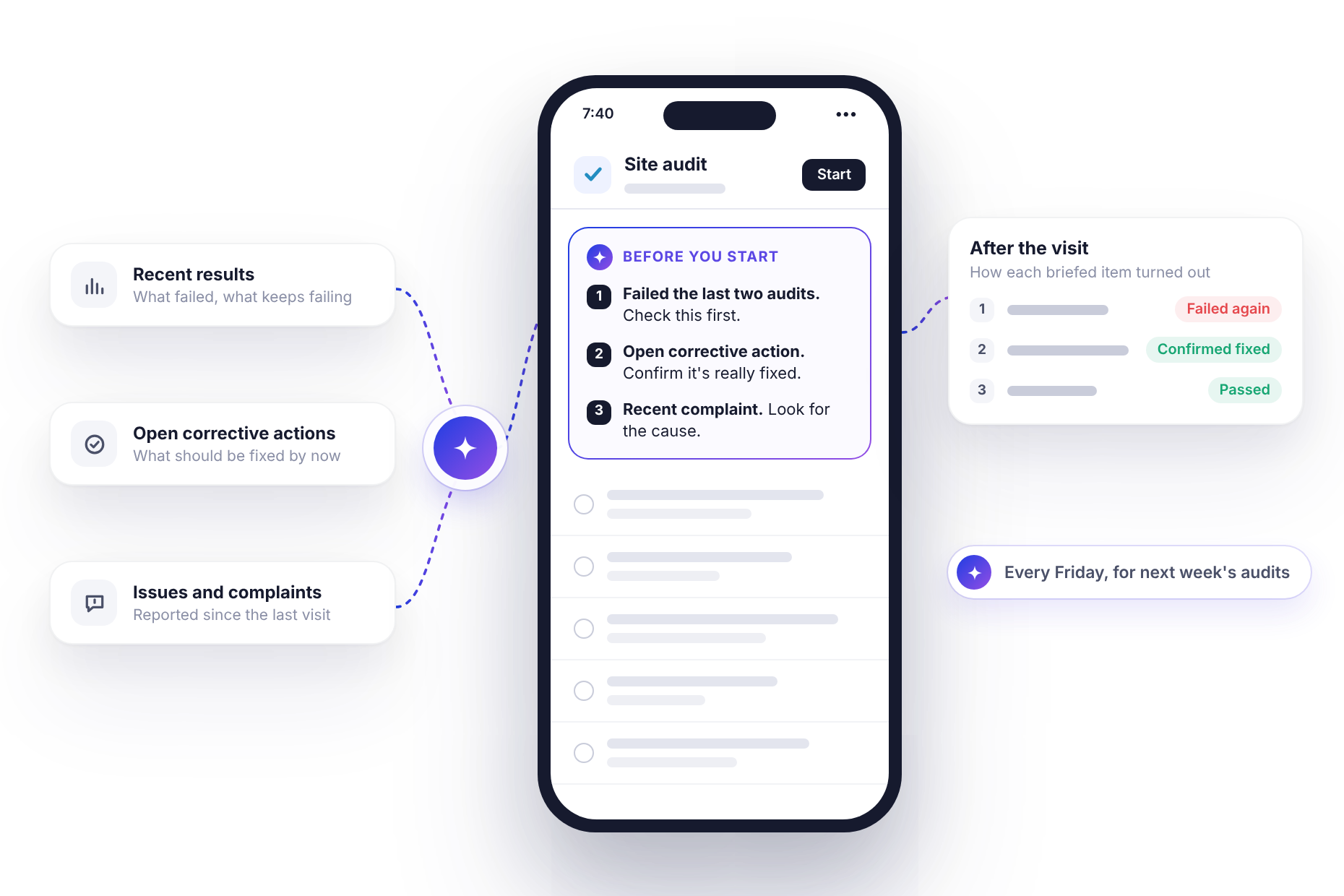
Dashboards are good at showing everything. They’re less good at showing only the things that need you, which is why so much of the week goes into filtering. An assistant connected to monitorQA can do the filtering for you, on a schedule and hand over only what’s left.
<<cta>>
One sentence sets it up
Once monitorQA is connected to an assistant like Claude (the setup guide covers how), a daily report is a single request:
“Every weekday at 8:00, show me yesterday’s completed audits that scored 75% or lower, worst first, with the site, checklist and auditor. If there are none, just say so.”
The quickest way to get the wording right is to ask the same thing as a normal question first, without the “every weekday” part. If the answer looks the way you want, add the schedule. If it doesn’t, adjust the sentence and ask again. It’s much easier to fix a report before it starts arriving every morning.
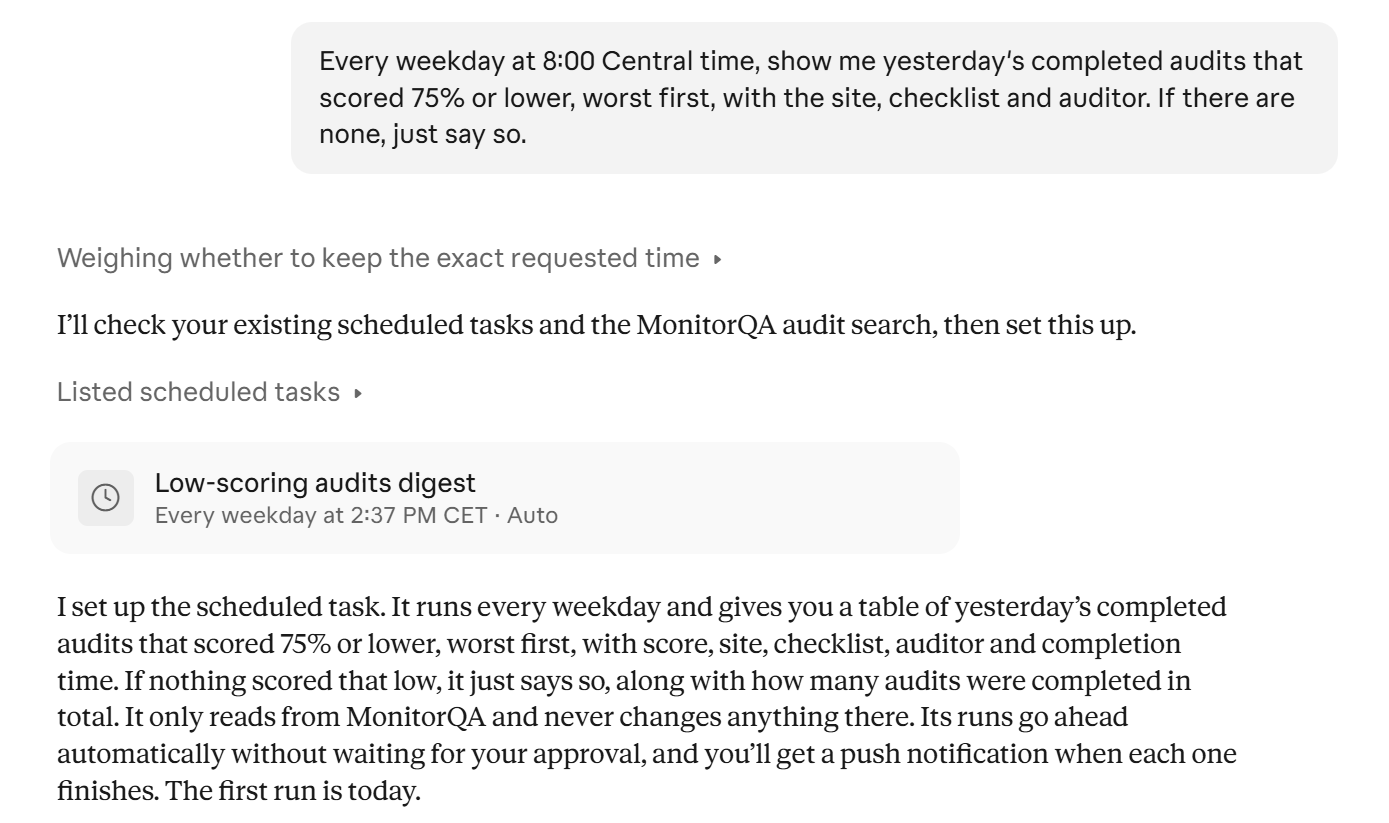
From then on, the list is waiting when you start work. It’s short by design: score, site, checklist, auditor, worst at the top. On a quiet day it just says there’s nothing to report, which is its own kind of good news.
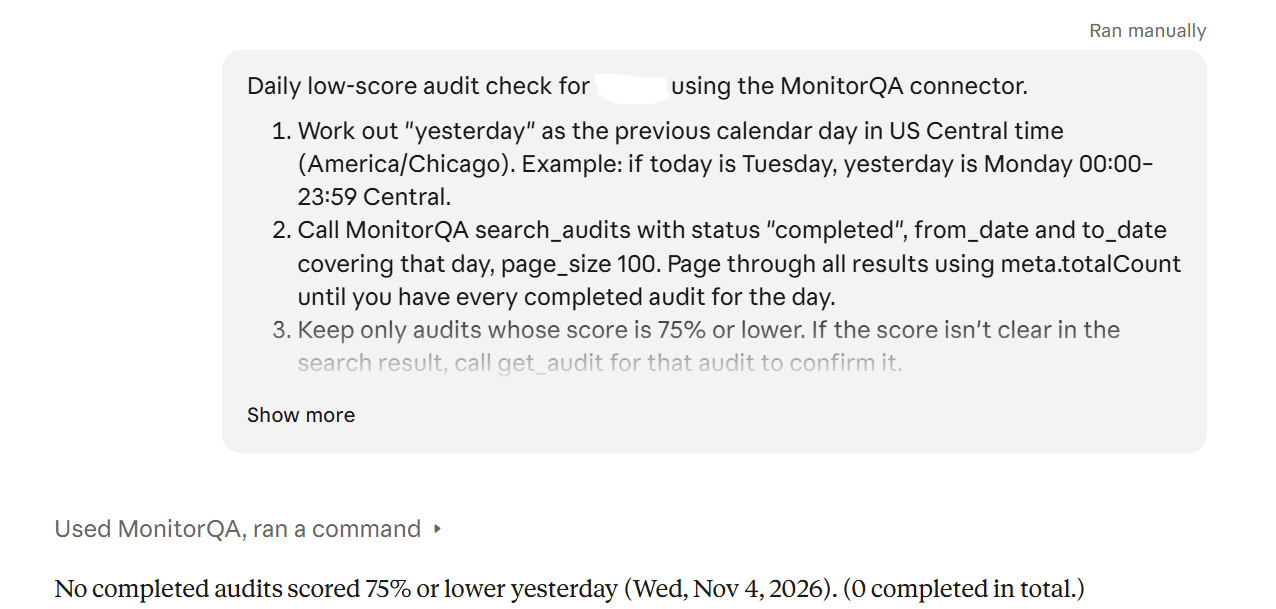
Because the assistant works from the audits themselves, you can ask follow-up questions right there. “Which questions failed at Minneapolis?” gets you the details without opening the app.
The Monday review that writes itself
A daily list catches bad results. It doesn’t show trends. For that, a weekly review works better:
“Every Monday at 7:30, review last week for each bar that had audits scheduled or completed: audits completed versus scheduled, average score and how many scored 75% or lower. End with two or three notes on where I should focus this week.”
The review covers every bar, but the part most managers read first is the end. The focus notes are where the assistant points out what the numbers mean, for example:
- Five bars failed the fire safety equipment check this week: Minneapolis, Chicago, Milwaukee, Detroit and Boston. Most of them still passed overall.
- Downtown’s hygiene audit was due on Tuesday and was never started.
- Boston’s bar cleaning checklist came in at 70%, its lowest result so far.
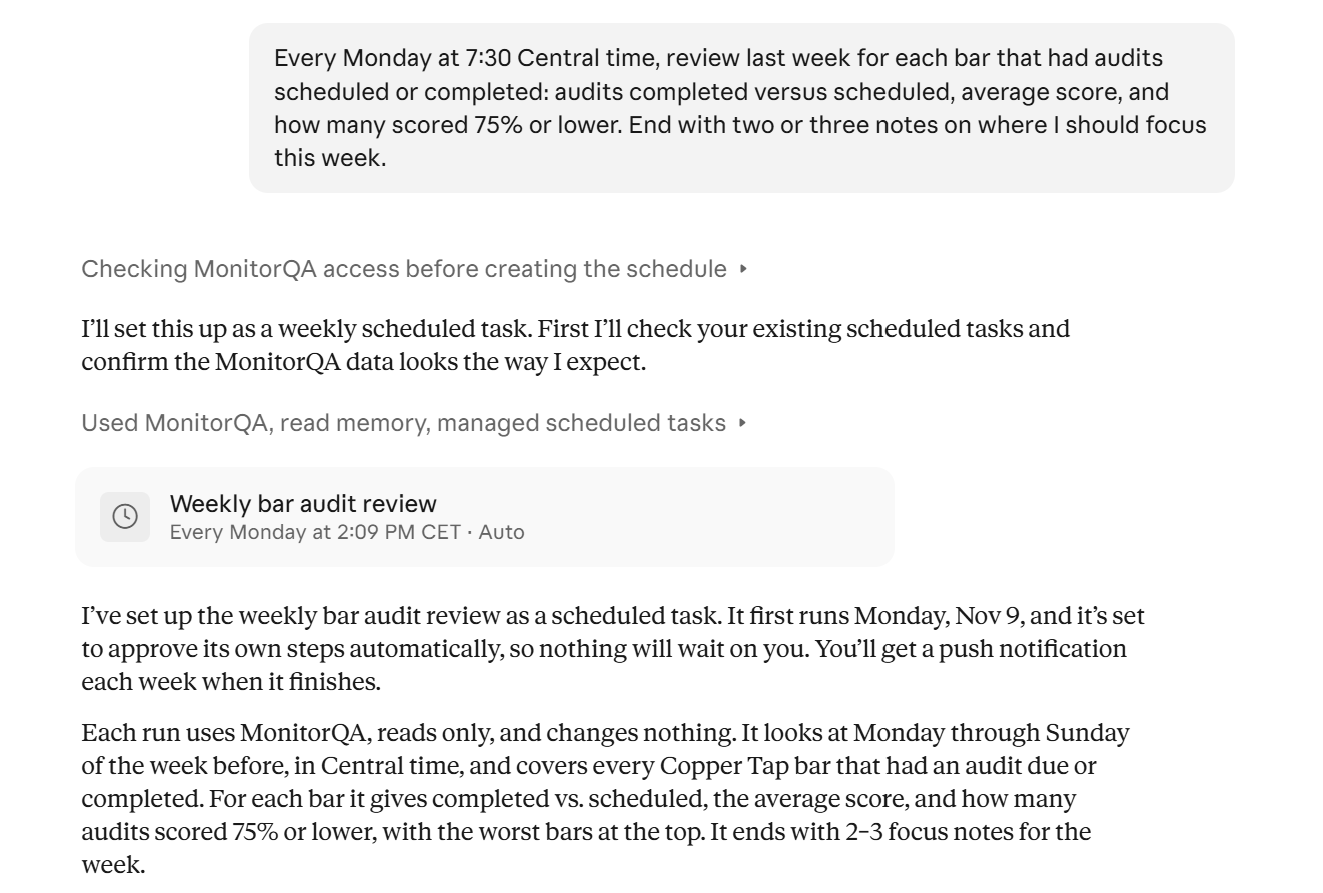
That second note is easy to miss on a dashboard, because a missing audit doesn’t show up as a low score. It just doesn’t show up. A review that compares what was done against what was planned catches it.
One practical note: the assistant works out these figures itself from your audit data rather than copying them from your monitorQA dashboards. If a number looks different from a dashboard tile, check that both are using the same date range and sites. It’s usually a filter, not an error.
<<cta>>
When it can’t wait until morning
Some results shouldn’t sit overnight. A failed fire safety check probably needs someone to act today, even when the audit as a whole passed.
If your email is connected too, the assistant can send those straight to the person responsible. The key is telling it who that is:
“Every hour, check for newly completed audits that failed a fire safety question. For each one, email the bar manager with the score, the failed questions and a link to the audit report, and copy me. Bar managers: Minneapolis, Sarah Mitchell; Chicago, David Lopez; Milwaukee, Kevin Walsh; Detroit, Angela Harris; Boston, Emily Carter.”
Listing the managers in the instruction keeps things predictable. The assistant doesn’t have to guess who owns which bar, and when someone changes roles, you update one line.
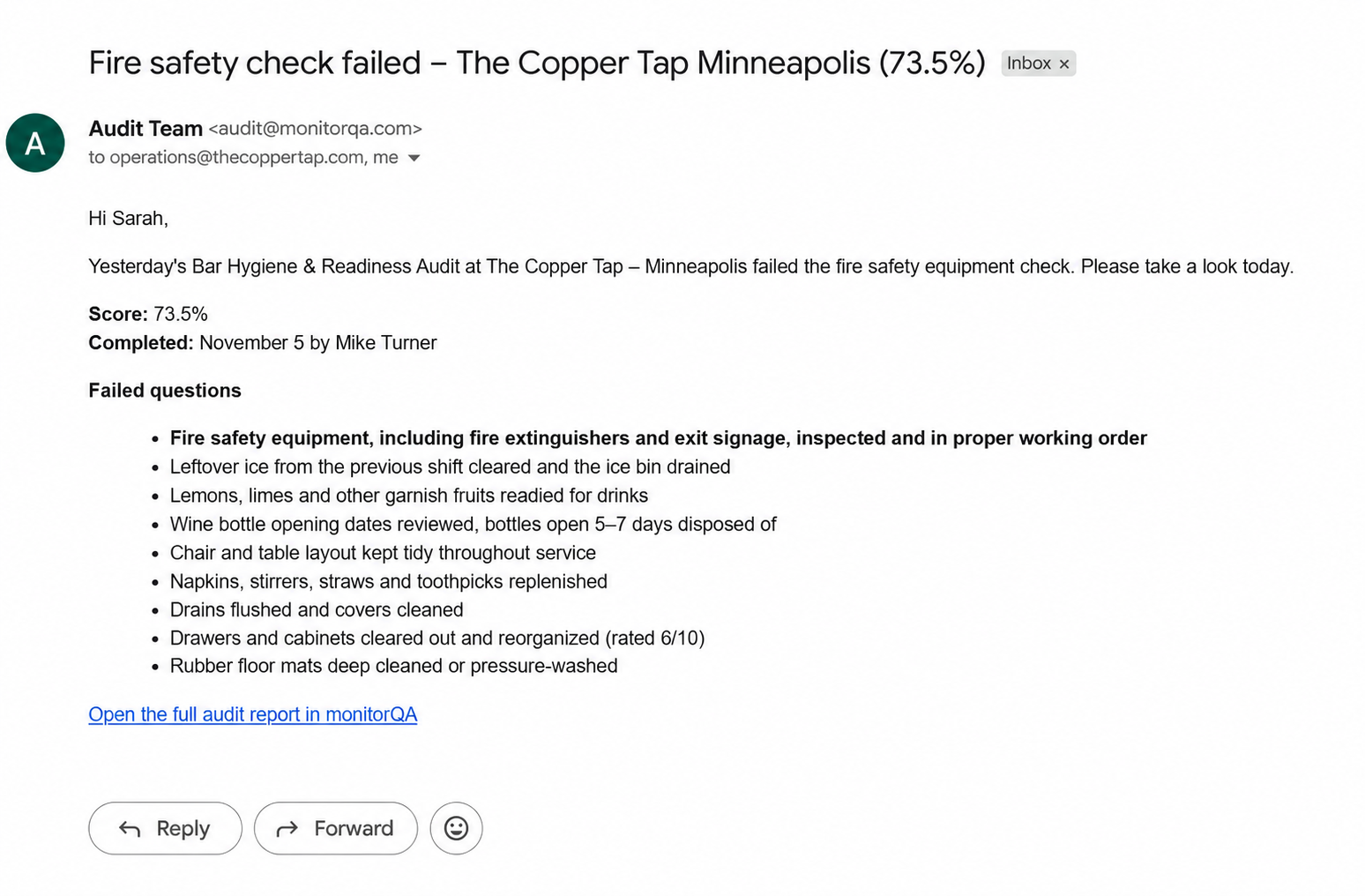
It’s worth being clear about timing. The assistant checks on the schedule you give it, so with an hourly check, a failed audit reaches the manager within the hour, not the second it’s submitted. For most escalations that’s plenty. If something truly can’t wait an hour, that’s a phone call from the auditor, not a report.
Getting the thresholds right
The fastest way to ruin a good report is to make it noisy. If the morning list has fifteen lines, people stop reading it by Thursday. A few things help:
- Start with one threshold and live with it for two weeks. If you never act on anything in the list, raise the bar. If you keep finding problems the list missed, lower it.
- Use different thresholds for different checklists. 75% might be fine for an end-of-night cleaning checklist and far too generous for a hygiene audit that covers fire safety. Say so in the instruction.
- Send each report to the people who act on it. The regional manager wants the weekly review. The bar manager wants their own escalations, not everyone else’s.
- Keep the “nothing to report” line. A short message on a quiet day tells you the report ran. Silence leaves you wondering whether it did.
<<cta>>
What this does and doesn’t replace
Your dashboards aren’t going anywhere. They’re still the best place to explore, compare periods and dig into something you’ve spotted. What changes is that you open them because a report gave you a reason, not out of habit.
Two things to know before you set this up. Scheduled reports are a feature of the assistant, not of monitorQA, so check that yours supports them. Claude does, and can run them in the cloud, so they keep going when your laptop is closed. And the reports can only see what the connected account can see. If that account only has access to six bars, the review covers six bars.
Start with the report you already make by hand
Most managers already have a version of this routine: a Monday spreadsheet, a morning scan of the dashboard, a list they send to the area team. Start there. Describe that report to the assistant in a sentence, check the first answer, then put it on a schedule.
If, after a month, you’ve stopped opening the dashboard just to make sure nothing’s wrong, it’s working.