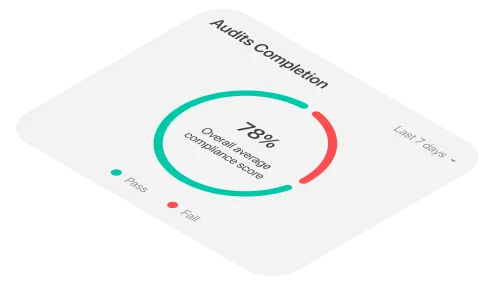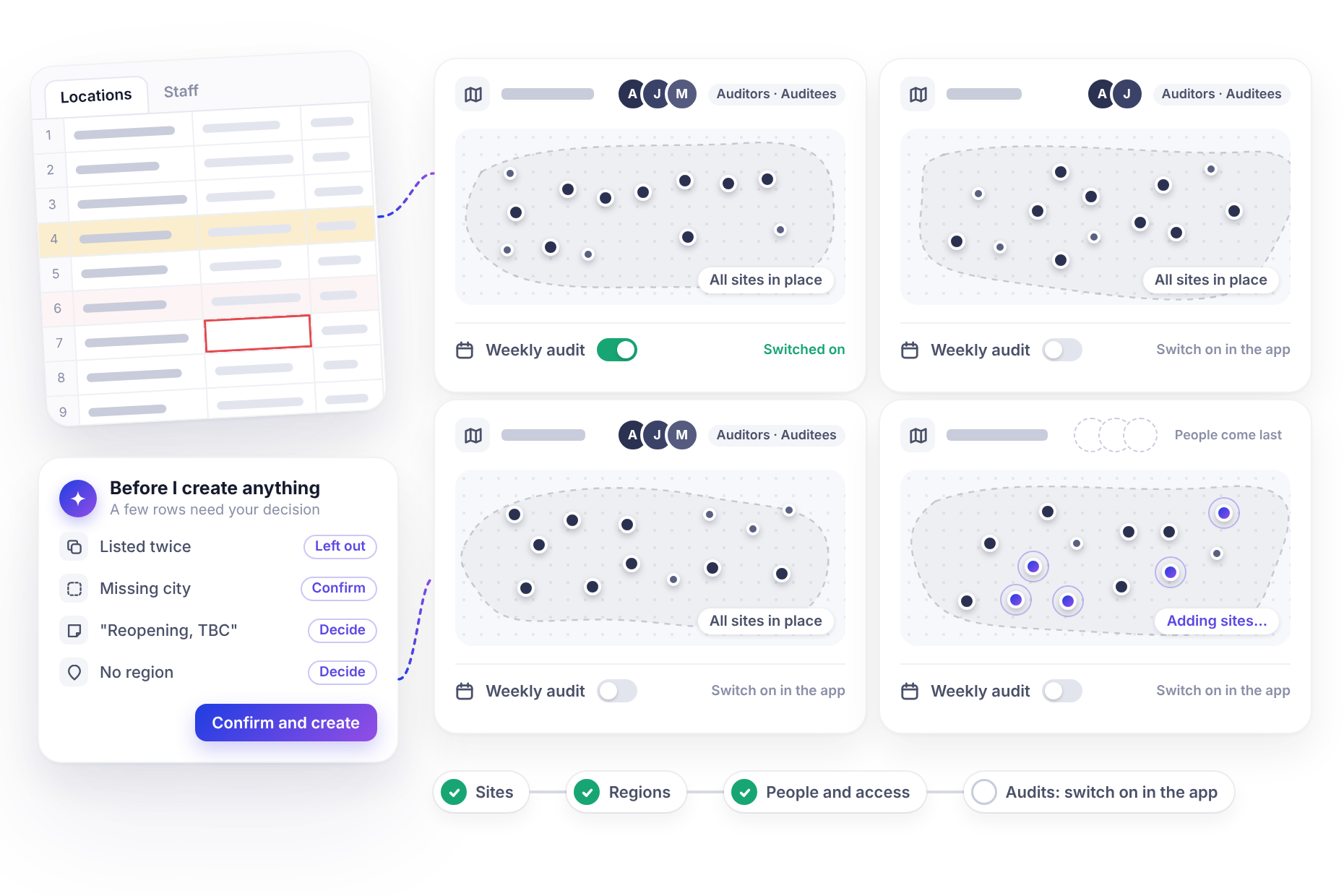
The deal is done. From the first of the month, your company runs 52 more bars across Texas, with 14 area managers and 6 inspectors who’ve never used your system.
Then the spreadsheet arrives. One tab for locations, one for staff, a few rows highlighted in yellow that nobody explains and a note saying “let us know if you need anything else.”
Getting all of that into your audit system is nobody’s favorite job. Each step is simple. There are just a lot of them and they all have to be right before the first inspection goes out. Done by hand, it takes days and the typos show up weeks later when an inspector can’t find their bar.
With an AI assistant connected to monitorQA, you can hand over the spreadsheet and get most of that done in one conversation.
What a new account actually needs
It helps to be clear about what “setting up” really means. For each new group of sites, someone has to:
- create every site, with the right name and time zone
- group the sites into something manageable, such as regions
- create every user with the right role
- make sure each person can see the sites they’re responsible for and only those
- put the regular audits on the calendar
None of it is hard. It’s just 52 bars times every one of those steps and a missed access setting or a wrong time zone doesn’t show up until something goes wrong.
<<cta>>
Start with the spreadsheet you already have
Once monitorQA is connected to an assistant like Claude (the setup guide covers how), attach the spreadsheet and describe what you want. It doesn’t need to be tidied up first:
“We’re taking over these 52 bars. Create a site for each one with the right time zone and put the address and area manager in the notes. Show me the list before you create anything.”
Asking for a preview is worth the extra minute. The assistant reads the file, works out which column is which and lays out exactly what it’s about to create. This is also where it flags the things a person would trip over halfway through: a bar listed twice under slightly different names, a row with no city, a location with no region, a note saying a bar is “reopening after remodel, TBC.” Where the answer is obvious, it suggests one and asks you to confirm rather than guessing quietly.
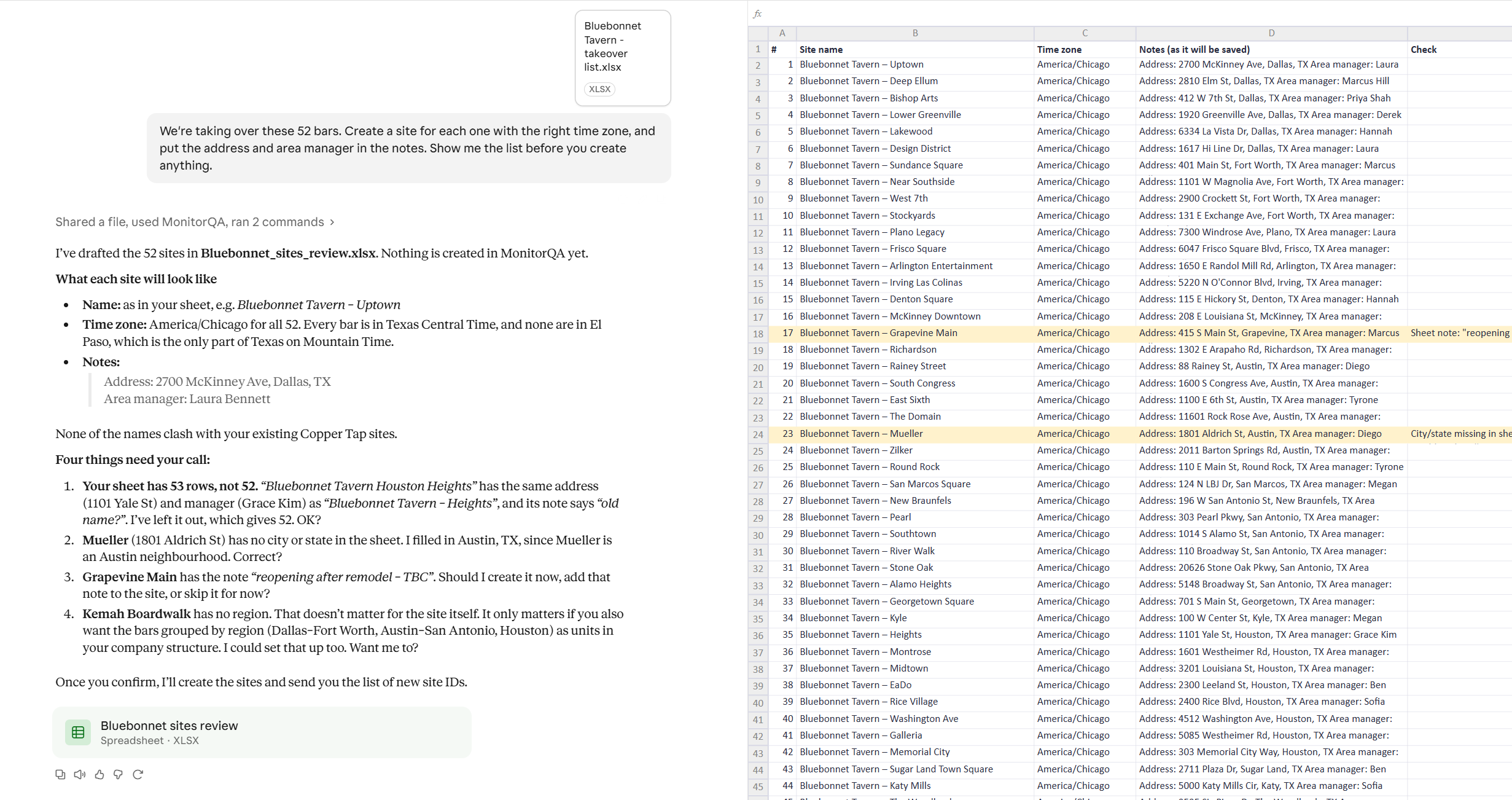
Fix those few rows in the conversation, confirm and the sites are created. Fifty-two of them, all named consistently.
A note on what goes where: monitorQA sites created this way get a name, a time zone and notes so the address and any other details you want to keep go into the notes. If you want a proper address on the map, add it in the app.
<<cta>>
Group it into something you can manage
Fifty-two bars in one long list is hard to work with. Most companies already think of their locations in regions, districts or areas so set monitorQA up the same way:
“Create a region for each value in the Region column and put each bar in it.”
This pays off more than it seems now. Once sites sit in regions, you can give people access to a whole region at once, schedule audits for a region in one go or ask for a weekly review of just one area.
People come last
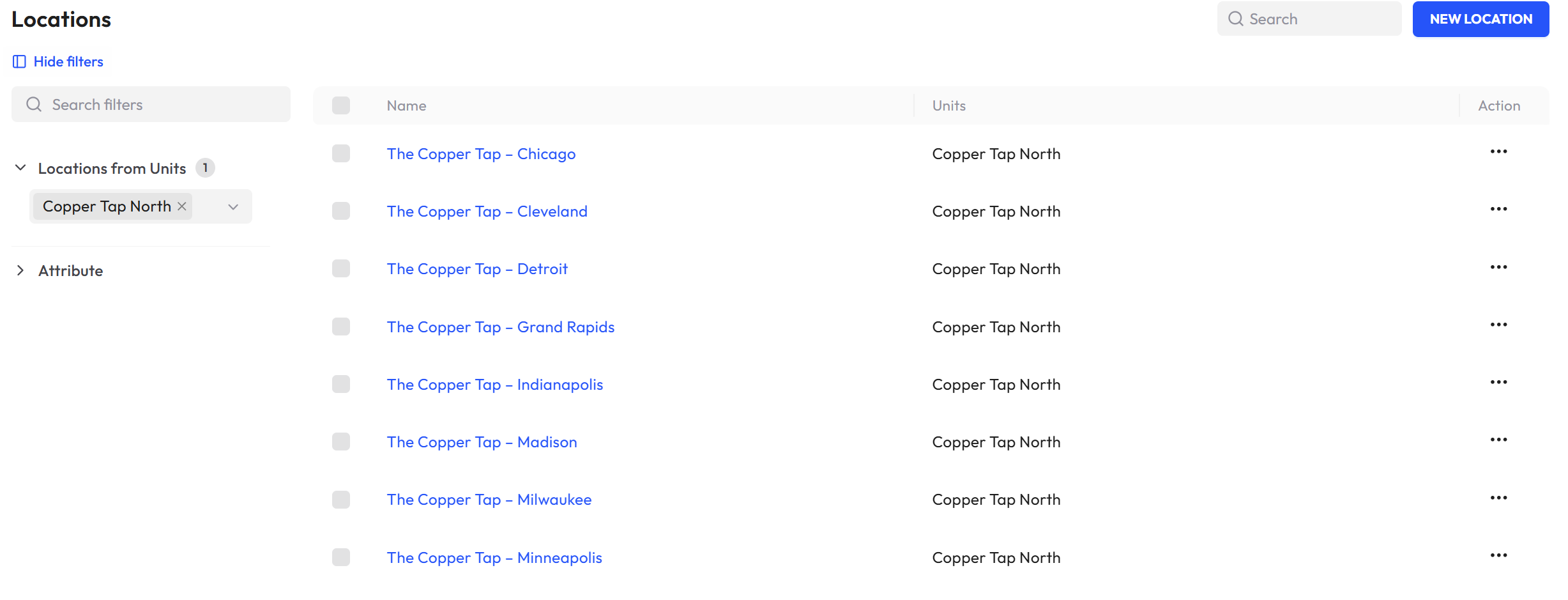
With sites and regions in place, add the people. The staff tab usually has everything needed: name, email, position and region.
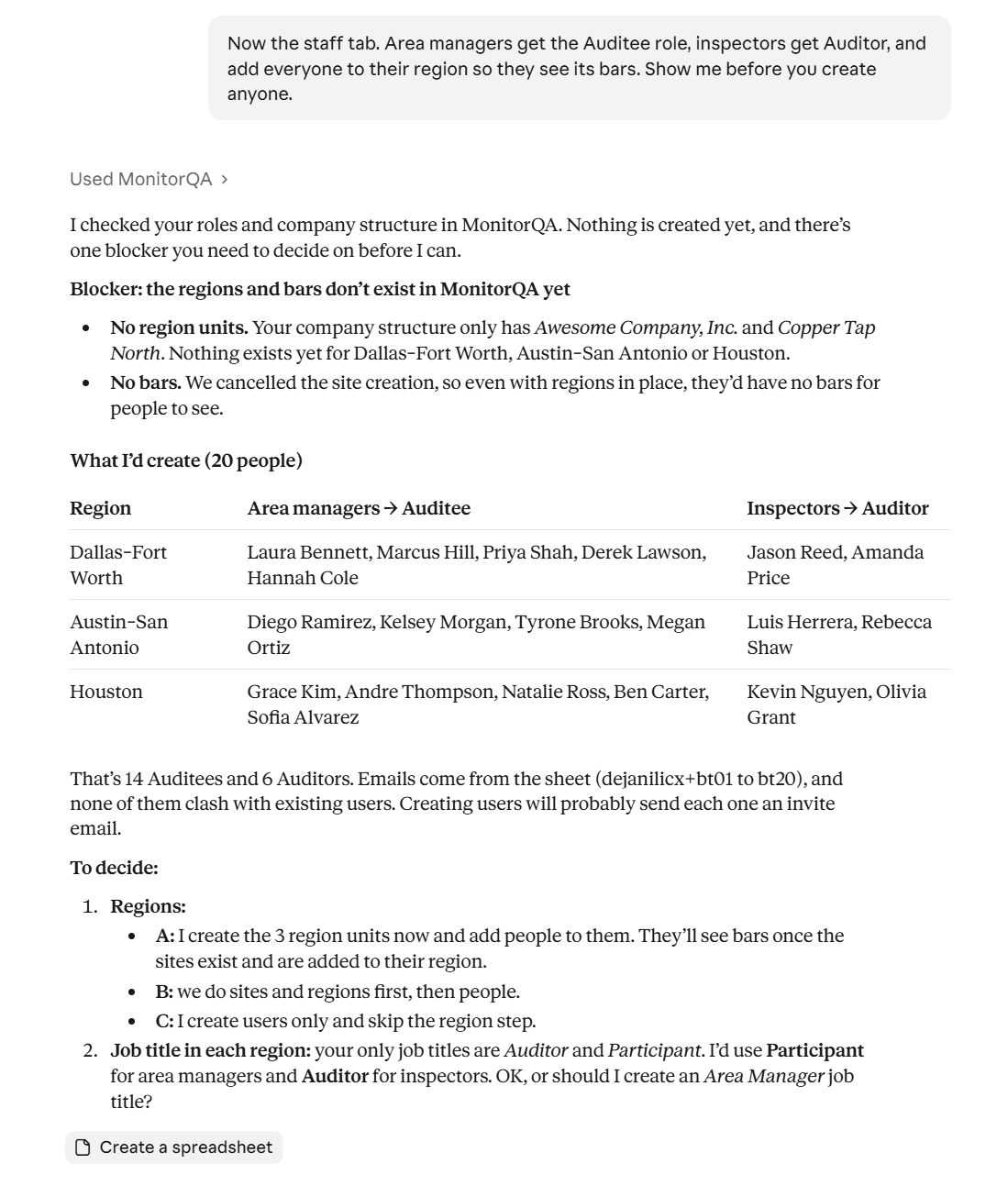
“Now the staff tab. Area managers get the Auditee role, inspectors get Auditor and add everyone to their region so they see its bars. Show me before you create anyone.”
Access is the part that matters most and it’s the part most likely to go wrong when done by hand. An inspector who can’t see their bar can’t do the audit. An inspector who can see every bar in the company sees more than they should. Giving access by region keeps it simple: everyone sees exactly the bars in their area and when a bar joins the region later, its people get it automatically.
There’s a good reason people come last. monitorQA sends each new user a welcome email with their login details as soon as their account is created. Adding them once their bars and regions are already in place means nobody logs in to an empty app.
<<cta>>
Put the audits on the calendar
With the structure in place, the last step is the regular inspection rhythm. If you already use a suitable checklist, the assistant can schedule it straight away. If the new bars need their own version of an existing checklist, it can make a copy for you to adjust in monitorQA first.
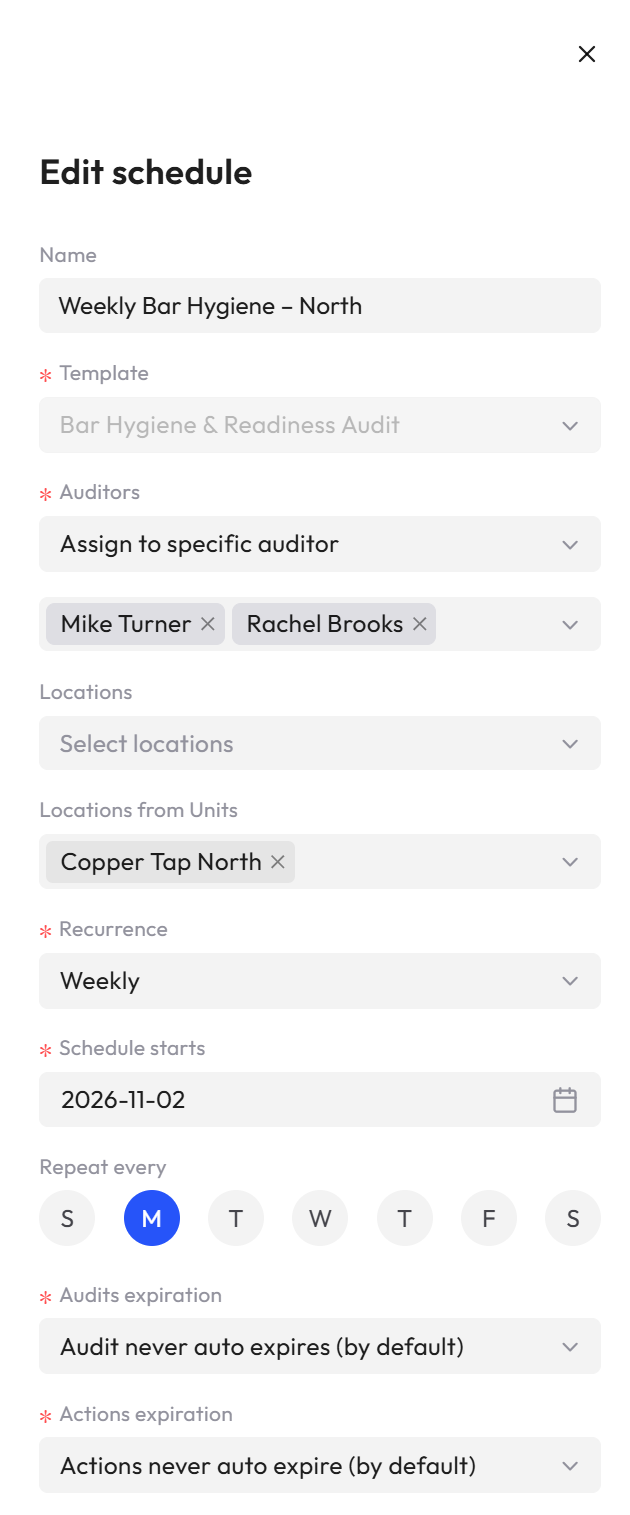
“Set up a weekly Bar Hygiene & Readiness Audit for every bar in each region, assigned to that region’s inspectors.”
One step here stays with you: recurring schedules created by the assistant need to be switched on in the monitorQA app before they start running. It’s a single click per schedule, and it’s a reasonable last look before audits start landing on people’s phones.
What still needs a person
A few things are worth knowing before you plan an onboarding around this:
- Switching schedules on, as above.
- Addresses on the map. The assistant puts addresses in the site notes; a structured address is added in the app.
- Building new checklists. The assistant can copy an existing checklist but creating or editing one happens in monitorQA’s template editor.
- Careful with deletions. If something needs undoing, ask the assistant to show you exactly what it will remove before it does. Deleted sites, users and schedules can’t be restored.
And as always, the assistant works with the permissions of the account you connected. To create sites and users, that account needs a role that’s allowed to and it can’t give anyone a role with more permissions than its own.
Do one region first
For your first import, don’t do all 52 bars at once. Do one region, check the sites and the regions and fix anything that looks off in the spreadsheet itself. Then add that region’s people.
Then do the rest. The second and third regions take minutes because by then you know the file is right.